
Microsoft Launches PowerToys 0.102 Update
Microsoft recently launched the latest iteration of its utility suite, PowerToys version 0.102. This substantial update introduces two novel mouse tools: Mouse Button Lock and CursorHide. Furthermore, it integrates a quick access bar into the Command Palette. It also revitalizes the ZoomIt screenshot and voice transcription capabilities. According to the official release notes published by Microsoft on GitHub, the new iteration broadens the capabilities of several command-line instruments. Additionally, it refines components such as the Keyboard Manager.
Innovative Mouse Utilities
The Mouse Button Lock primarily serves to streamline prolonged dragging and selection maneuvers. Users simply press and hold a mouse button for a brief moment before releasing it. The system subsequently registers the button as continuously depressed. This allows for seamless dragging or content selection. The action continues until the user clicks any mouse button again. This feature supports the left, right, and middle buttons. It proves invaluable for professional software or gaming scenarios that necessitate frequent dragging. Moreover, it significantly enhances the user experience for individuals who struggle with holding mouse buttons for extended periods.
Introducing CursorHide
Conversely, CursorHide automatically conceals the on-screen mouse pointer under specific conditions. It activates when the user types or when the mouse remains idle for a prolonged duration. The hiding effect also triggers when both conditions occur simultaneously. The pointer reappears instantly the moment the user moves the physical mouse.
Command Palette Enhancements
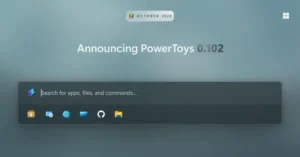
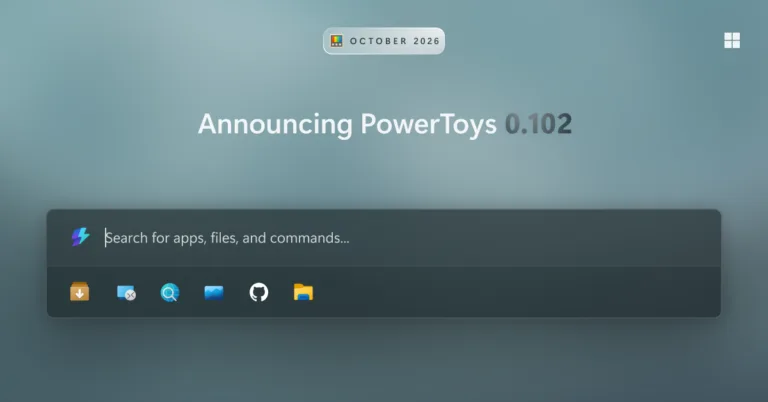
The Command Palette also received a multitude of enhancements. The newly integrated quick access bar displays pinned items directly beneath the search box. This functions perfectly when the palette remains in a collapsed state. Users can activate this feature by navigating to “Settings > Appearance > Compact mode.” From there, they can rapidly launch corresponding items using the Alt+1 through Alt+9 shortcuts. Alternatively, utilizing Alt+Shift accompanied by a numeric key selects an item without executing it immediately. Furthermore, users can drag to reorder their pinned items. They can execute additional actions via a right-click context menu. Users can also toggle the visibility of recently utilized commands and applications.
Advanced Navigation and Control
Additional refinements to the Command Palette encompass advanced settings search capabilities. They also include comprehensive keyboard navigation for the dock and multi-timezone clock integration. Users can now employ fuzzy search to locate specific settings effortlessly. Pressing Win+Alt+J shifts the focus entirely to the dock. This enables seamless movement between items using merely the keyboard. Furthermore, individuals can configure the Command Palette as the designated application for the Copilot key within Windows settings. Pressing the key subsequently toggles the visibility state of the command interface.
Dock and Interface Optimizations
The latest version also permits users to pin multiple clocks within the dock. They can meticulously configure individual time zones and display formats for each clock. Individuals can select a specific application language for the command panel. Users can also copy direct links to open specific pages or execute commands. Microsoft optimized the application icon rendering and accelerated gallery browsing speeds. The development team perfected the continuous loading of list results alongside nested menu displays.
ZoomIt and Voice Transcription
Regarding ZoomIt, the newly introduced “Snip with dictation” functionality empowers users to record voice descriptions synchronously. This works flawlessly while capturing a screen region. Users must first activate this feature within the ZoomIt settings. Subsequently, while dragging to select the screenshot area, they can press the spacebar. Then, they simply vocalize their descriptive content. ZoomIt performs the voice transcription locally on the device. This allows users to obtain both the image capture and the corresponding transcribed text through a single paste operation. This feature utilizes the specific microphone designated in the recording settings.
Furthermore, ZoomIt refined its zooming transition effects and audio recording cadence. It also resolved a critical issue where recorded content remained entirely silent on multi-channel audio devices.
Advanced Command-Line Support
Finally, PowerToys 0.102 introduces robust command-line tool support for Advanced Paste, Light Switch, Settings, and Peek. Notably, Advanced Paste can now execute built-in operations via the command line. It accommodates files, standard input/output, or the clipboard. Light Switch supports status queries, theme toggling, and scheduled task management while offering JSON output capabilities. The Settings command-line instrument enables users to query the activation status of various utilities. Users can modify enabling parameters even when PowerToys is not actively running. Meanwhile, Peek now facilitates the previewing of multiple files and folders directly through the terminal.