
Lost work laptops can now be locked instead of wiped
IT admins can now lock a lost or stolen Windows PC from Microsoft Intune without erasing it, at least in testing. Microsoft added the feature, called Remote Lock, to Windows 11 Insider Preview Build 29708.1001. The build arrived on November 13, 2026, in the Experimental (Future Platforms) channel.
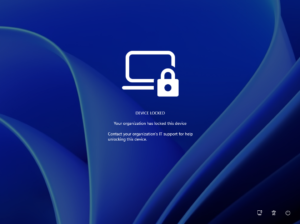
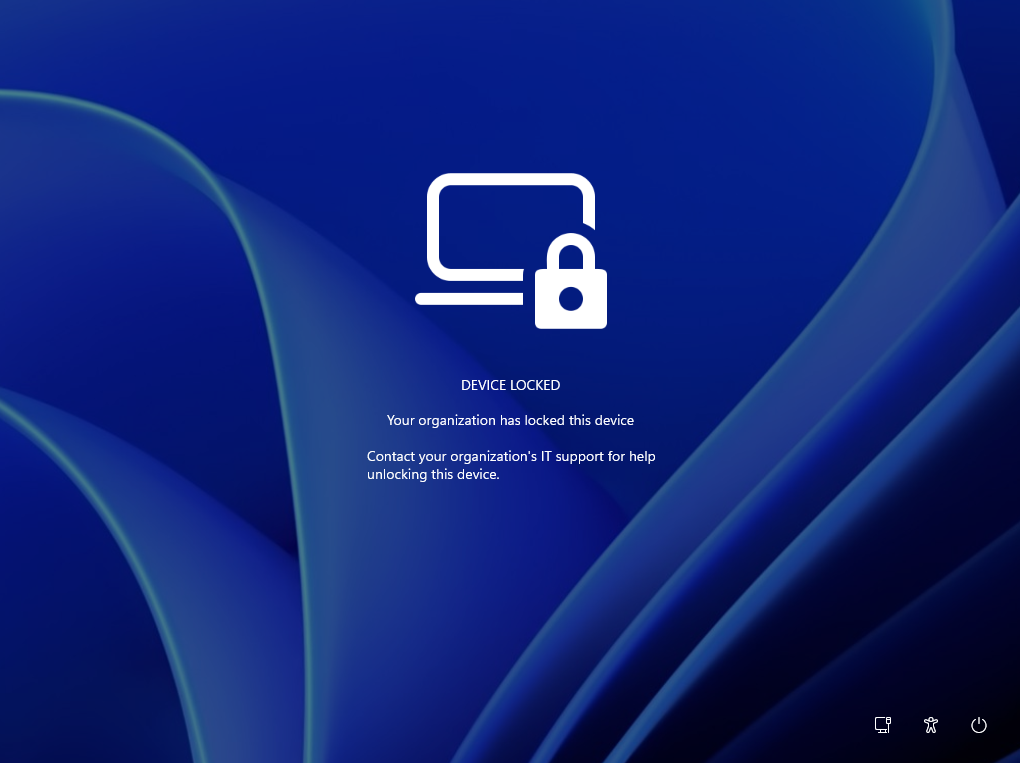
Once the lock applies, Windows signs out every active session and hides all sign-in options. Users see a “Device locked” screen. A correct password, PIN or local admin account will not get them back in. Only an admin can lift the lock, and only through Intune.
This fills a long-standing hole. Intune’s remote lock action has covered Android and Apple devices for years, but not Windows PCs.
How Windows Remote Lock works
Microsoft’s Remote lock for Windows documentation describes a tool for lost, stolen or compromised devices. Nothing gets erased. The PC stays enrolled and managed, BitLocker stays on, and user data stays in place. If the device turns up, the user can pick up where they left off.
The lock survives restarts and holds while the device is offline. The catch is timing. A lock command takes effect only at the device’s next check-in with Intune. A laptop that never reconnects will never receive it.
The default screen tells users that their organization has locked the device. It then asks them to contact IT support. Admins can replace or extend that text with their own reason and a help desk contact.
What changes for you
For IT admins
There is no Remote Lock button for Windows yet. In this preview, admins build custom profiles in the Intune admin center under Devices, Windows, Configuration, using the “Windows 10 and later” custom template. One profile sets LockState to 1 and goes to a group reserved for locked devices. A second profile sets LockState to 0 and goes to an unlock group.
To lock a PC, an admin adds it to the lock group. To unlock it, the admin moves it from the lock group to the unlock group. Intune then reports the effective state, including pending locks and errors.
For employees
A locked PC has no local way out. Microsoft says no PIN, password, local admin account or web sign-in works on it. Employees will need their help desk. Their account itself stays active, so they can still sign in on other devices.
Who can use it
The documentation lists Windows Pro, Enterprise and Education. Devices must be Microsoft Entra joined, hybrid joined or MDM-enrolled. The page header also names Windows 10 and Windows Server 2016, 2019 and 2022. Its setup requirements, however, mention only client editions. Microsoft tells admins to verify support before relying on it for servers.
What Remote Lock does not do
Microsoft is clear that this is not protection against someone who holds the hardware. The lock does not block these paths:
- The Windows Recovery Environment (WinRE)
- Safe Mode
- Booting from USB or other media
It also does not cut the PC off from the network or erase data. Intune has separate controls for isolation and wipe. Microsoft tells admins to keep BitLocker enabled. Encryption protects the data if someone removes the drive or reimages the device. Remote Lock keeps BitLocker on where it is already set up, but it does not switch it on.
Compromised credentials need a separate step. Locking one laptop leaves the account usable elsewhere. To disable the account or revoke its sessions, admins must use Microsoft Entra ID.
Windows Remote Lock vs Intune remote lock on Mac
Intune’s existing remote lock device action supports Android Enterprise corporate-owned devices, AOSP, iOS/iPadOS, macOS and visionOS 2.0 and later. Windows is not on that list. The new Windows feature works differently from the Mac version.
| Intune remote lock on macOS | Windows Remote Lock (preview) | |
|---|---|---|
| How IT sends it | Remote lock action on the device page in the admin center | Custom OMA-URI profile assigned to a device group |
| How the device is unlocked | Six-digit recovery PIN set by the admin | Unlock profile from Intune (LockState = 0); no local unlock |
| Recovery PIN | Shown for up to 30 days, then it cannot be retrieved | None |
| Status | Existing Intune device action | Preview, Experimental (Future Platforms) channel only |
From “no plans” to a preview build
Microsoft had said several times that this feature was not coming. The record on its Tech Community forums shows the shift:
- August 17, 2023: Microsoft’s Joe Lurie explained in a Windows Office Hours thread that Intune is an agentless MDM that relies on the operating system’s controls. Because Windows did not allow a remote lock, Intune could not perform one.
- March 6, 2025: Asked again during an Intune event, Lurie replied: “We do not have plans today to implement Remote Lock on Windows devices.” He added that Microsoft had heard the feedback and asked admins to upvote it.
- March 7, 2025: Microsoft’s Albert Cabello Serrano wrote that the feature was “not high on our backlog.”
- November 13, 2026: Remote Lock appeared in Build 29708.1001, and Microsoft updated its documentation the same day.
The 2023 explanation helps make sense of the design. The new lock lives in Windows itself, under a RemoteDeviceLock settings path. That is why it ships in a Windows build rather than as a new Intune button.
Technical details for admins
The custom profile uses three OMA-URI settings:
- LockState (required, integer): ./Device/Vendor/MSFT/RemoteDeviceLock/LockState. A value of 1 locks and 0 unlocks.
- LockReason (optional, string): ./Device/Vendor/MSFT/RemoteDeviceLock/LockReason. This text appears on the lock screen, up to 1,024 characters.
- RecoveryHint (optional, string): ./Device/Vendor/MSFT/RemoteDeviceLock/RecoveryHint. This holds a help desk contact, up to 256 characters.
A read-only Status node reports the result. It returns 0 for unlocked, 1 for locked, 2 for lock pending and 3 for an error.
What to do now
- Confirm that BitLocker is on across your Windows fleet. Remote Lock leaves recovery and USB boot paths open, so encryption carries the data protection.
- Check that devices are Entra joined, hybrid joined or MDM-enrolled and run Pro, Enterprise or Education.
- If you run Insider test machines, plan the lock and unlock device groups ahead of time.
- Add an Entra ID step to your lost-device process. Disabling the account or revoking sessions remains a separate task.
Other changes in the same build
Build 29708.1001 also changes Windows Hello for personal accounts. PIN setup now needs at least six digits, with an option for four, and Microsoft removed the old complexity rules. Work account PIN rules stay the same.
The build also adds Cloud rebuild, a recovery option that reinstalls Windows 11 even when the PC will not boot. It downloads the Windows image and device drivers from Windows Update and is available from WinRE and Settings. Other additions include tags for WebP files and text support for Unicode 17.0. 4sysops notes that Microsoft’s announcement lists build 29708.1003 for the same channel, so the number may differ on test machines.
What remains unclear
Microsoft has not given a release date. Experimental (Future Platforms) builds do not match any specific Windows release. Microsoft warns that their features may change, be removed or never ship beyond Insiders. Many also roll out gradually, so not every Insider will see Remote Lock right away.
Open questions remain. Microsoft has not said whether a one-click Intune action will replace the custom profiles. It also has not confirmed that Windows 10 and Windows Server will get the feature in practice. For now, the lock depends on a lost PC coming back online, which limits its value for a device that stays switched off.