
Phased Rollout of Key Enhancements
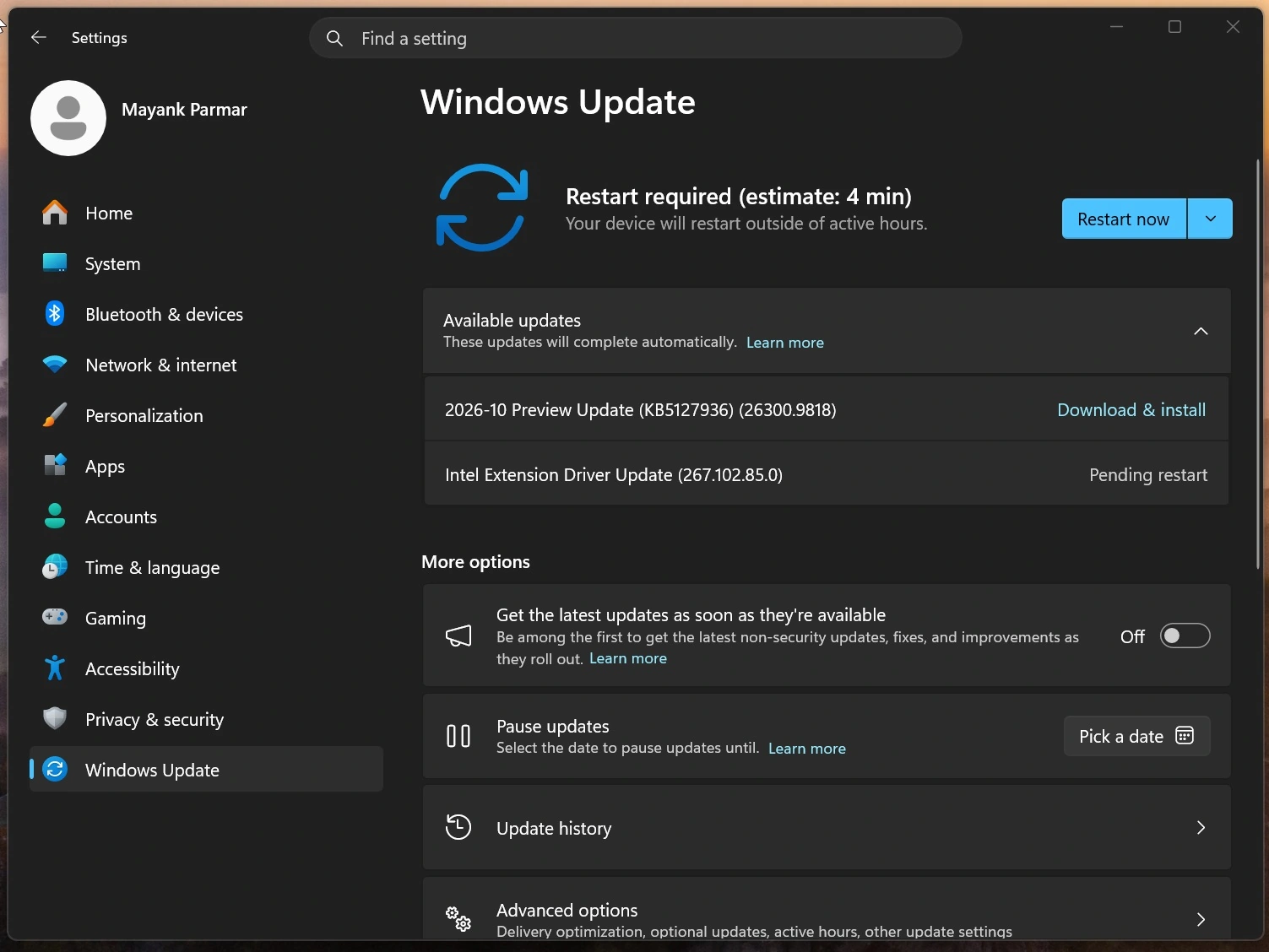
Yesterday, October 28, Microsoft dispatched a significant optional update to users. This patch specifically targets Windows 11 versions 25H2 and 26H2. Upon successful installation, the system version ascends to Build 26200.9818 and Build 26300.9818. For comprehensive and technical details, you can consult the official release notes for the KB5127936 Windows 11 25H2 and 26H2 update. The official changelog encompasses several remarkable improvements.
1.1 Context Menu in File Explorer
Microsoft introduced a beautifully redesigned context menu. It operates significantly faster and appears much cleaner visually. Furthermore, it offers easier customization for everyday users. The menu opens with remarkable speed and reduces visual clutter effectively. Additionally, it grants superior control over commands and third-party application extensions.
Users can now customize this menu deeply. Simply click the “Customize Menu” button located at the bottom. This action opens a dedicated customization section within the Settings app. Here, you can perform multiple personalized actions. You can enable or disable built-in Windows commands like “Send to” and “Create shortcut”. You can also add extra commands like “Print” directly to the primary menu. Moreover, you can choose which app extensions display in the main menu. Alternatively, you can hide the app extension submenu entirely.
Furthermore, you can display basic commands as classic text strings. These include cut, copy, paste, rename, delete, and share actions. This modification replaces the standard top bar icon layout. You can also move the “Properties” item to the very bottom.
To customize the menu, just right-click anywhere. Next, select “Customize Menu” and specify your desired layout. Using the default configuration requires absolutely no extra effort. Alternatively, hold the Shift key while right-clicking a file. This action instantly opens the classic context menu with all available options.
1.2 File Explorer Improvements
File Explorer now presents key file information in a highly unified layout. The search results page displays the name, location, and modification date clearly. Consequently, this structured view makes analyzing search results visually effortless.
The address bar now supports the tilde character (~). Therefore, you can swiftly navigate to your current user profile folder. For example, typing “~\AppData” works perfectly and saves valuable time. Furthermore, the “Folder Options” dialog now fully embraces dark theme aesthetics.
1.3 Dedicated Xbox Mode
Microsoft unveiled a brand-new game task view interface. This feature activates exclusively within the dedicated Xbox mode. A newly added navigation bar provides rapid access to essential controls. Specifically, it offers “Exit to Desktop” and various device power options. This change makes executing crucial system operations during gameplay much more convenient.
1.4 System Settings
The Windows Settings application boasts an improved “Privacy and Security” section. Users can now easily locate privacy controls for specific hardware components. This includes the camera, microphone, and location sub-sections. The update consolidates similar control options cleanly onto a single page. Additionally, it extracts usage information from deeper sub-pages for quicker access.
The “Device Details” card now graces the main Settings homepage permanently. Microsoft initially introduced this feature in a previous update. Now, it is available in significantly more countries and global regions. However, this card only appears for users logged into a Microsoft account. It provides a concise summary of key computer specifications gracefully. You can still view complete device specifications by navigating to Settings, System, and About.
Finally, the temporary files page underwent minor but pleasing visual refinements.
1.5 Phone Link Integration
Users can now hover their mouse over recent messages seamlessly. This action triggers a direct content preview right within the Start menu. You no longer need to open the item fully to read it. You can manage this feature easily through the Phone Link settings menu.
1.6 Taskbar Enhancements
Microsoft improved the animation fluidity for pop-up preview thumbnails. This enhancement occurs when moving your mouse cursor between taskbar application icons. Furthermore, the taskbar settings preservation mechanism received significant technical optimizations. This specifically benefits users who frequently connect and disconnect external monitors.
1.7 Magnifier Tool
The Magnifier tool introduces a brilliant new contrast theme toggle. You can now quickly reduce screen glare without distorting original image colors. This toggle enables a dark contrast theme automatically by default. It resides conveniently on the main Magnifier toolbar. You can select alternative themes inside the Accessibility settings. The classic color inversion feature remains completely available for users.
Additionally, the update adds independent scaling support for each connected monitor. Every active display can now utilize its own distinct scaling level. Consequently, the magnified area remains strictly within its physical screen boundaries. To enable this, configure your display mode to “Extend” in the system settings.
You can easily modify the screen scaling ratio on the fly. Simply hover over the scale and press Win plus the plus or minus keys. Alternatively, use Ctrl and Alt alongside your standard mouse scroll wheel. You can also drag the Magnifier toolbar directly to your preferred display.
Independent monitor scaling remains enabled by default. You can disable it easily through the Accessibility settings interface.
Microsoft also implemented a viewport lock feature for multi-monitor setups. This keeps the magnified area fixed on one monitor while you interact elsewhere. To toggle this lock, press Ctrl, Win, and K simultaneously. Pressing Win and Esc unlocks all monitors instantly.
1.8 Live Captions
A new “Enable Screen Reader Audio” setting makes its official debut. This setting remains disabled by default for all users. When disabled, Live Captions will completely ignore screen reader speech. Instead, it relies solely on the active microphone and system audio. You can enable this integration through the standard Accessibility settings.
1.9 Narrator Accessibility
The Narrator now supports reading complex mathematical expressions comprehensively. This includes Microsoft 365 applications like Word and PowerPoint. It also supports web pages in Microsoft Edge and Google Chrome browsers. Consequently, visually impaired users can process formulas and scientific notation much easier.
Pressing the Narrator key, Alt, and N activates formula navigation mode. In this specialized mode, you can use arrow keys to explore equation segments. Press the Esc key to exit this mode gracefully.
The mathematical reading feature now supports six distinct global languages. These include English, Traditional Chinese, Finnish, German, and Spanish. You can select your preferred language directly in the Narrator settings.
1.10 Family Safety
The Family Safety feature now displays greatly improved notification messages. These appear instantly when parental controls block a restricted application.
1.11 System Recovery
The Windows Recovery Environment (WinRE) now supports advanced network functionality. It can automatically reuse applicable Wi-Fi profiles saved in the main OS. This includes supported certificate-based Wi-Fi networks natively.
Previously, WinRE could only connect automatically to a wired Ethernet connection. Users had to connect manually to WPA2 networks and type passwords. Now, WinRE utilizes information from saved Wi-Fi profiles flawlessly. This helps devices connect to the internet automatically during crucial recovery scenarios. IT administrators can disable this feature if absolutely necessary.
1.12 Cloud Rebuild Feature
Microsoft proudly introduced the Cloud Rebuild system recovery feature. This revolutionary function restores your PC to a known good state. It achieves this by completely reinstalling the operating system seamlessly via the cloud. It works perfectly even if Windows fails to boot properly.
Unlike the standard “Reset this PC” function, Cloud Rebuild downloads fresh files. It acquires the target Windows image and device drivers directly from Windows Update. Therefore, you do not need a USB drive or custom installation image.
To initiate Cloud Rebuild, navigate to the System Recovery settings pane. If the operating system fails to boot, the computer enters WinRE automatically. From the troubleshooting menu, select Cloud Rebuild effortlessly.
You must connect your device to the internet using Ethernet or Wi-Fi. Next, confirm the target Windows version and system language settings. You must also select a disk preparation method carefully before proceeding. Finally, confirm the complete operating system reinstallation prompt.
The update also introduces highly secure data erasure options. You can choose a standard file deletion or a hardware-based disk wipe. The hardware wipe process is strictly irreversible for ultimate security.
IT administrators can now configure and run Cloud Rebuild remotely.
1.13 Backup and Restore Summaries
A helpful restoration summary feature now appears post-backup. This summary displays clearly after applying a profile backup to a new device. It showcases exactly which data transferred successfully. This improves transparency and allows users to verify restoration results instantly.
1.14 Application Management
Group Policy-based app removal now fully supports multi-session environments. IT administrators can manage standard app removals centrally across multiple active users.
1.15 Adaptive Hibernation Policy
The adaptive hibernation policy received several intelligent power refinements. It increases the immediate resume frequency from modern standby mode. It also improves energy conservation significantly during critical low battery states. The system reduces hibernation frequency when battery power safely exceeds 80 percent.
1.16 Enhanced Security
Memory integrity protection will enable automatically on fully compatible devices. Windows enables Memory Integrity (HVCI) during upgrades on supported PCs. This enhances security dramatically and prepares devices for advanced protection features. However, it preserves current user and administrator settings flawlessly. If you disabled this previously, the system will not override your choice.
1.17 IPv6 Network Features
Windows now integrates robust support for the IPv6 CLAT protocol. This applies to both wireless and wired network interfaces seamlessly. It empowers IPv4-only applications to access IPv4 resources across IPv6-only networks. This remarkable innovation accelerates enterprise transitions toward modern IPv6 architectures.
By default, the system discovers the PREF64 parameter through router advertisements. CLAT requires SLAAC-based IPv6 address allocation to function correctly on the network. Currently, the system does not support DHCPv6 prefix delegation entirely.
You can enable CLAT support using a simple command line prompt. Alternatively, configure it securely through Group Policy under network transition technologies.
1.18 Data Protection API (DPAPI)
The system now issues warnings for interactive encryption operations. These operations utilize user confirmation prompts for legacy DPAPI actions. This specific interactive mechanism will cease functioning entirely in April 2027. Developers must transition to modern, non-interactive protection schemes promptly. Standard DPAPI operations without interface prompts will continue functioning normally.
1.19 Windows Spotlight
Microsoft optimized its internal infrastructure for the Windows Spotlight service. This improves the stability of lock screen background image updates significantly.
1.20 Unicode 17.0
Windows updated its text formatting support to the Unicode 17.0 standard. Consequently, the operating system accurately displays newly encoded text characters. Unicode 17.0 introduces 4,803 brand-new characters to the global standard array.
Features Available to All Users
2.1 Microsoft Edge Browser
Microsoft implemented a vastly faster application launch mechanism internally. This enhancement accelerates Microsoft Edge startup speeds significantly. When you click a link, Windows passes the request directly. It utilizes the program’s existing background instance immediately. This eliminates the absolute need to create additional intermediary background processes. Ultimately, it reduces system latency during intensive multitasking sessions. This represents the first integration phase for universal Windows system services.
2.2 App Management (Global)
Group Policy-based app removal extends across multi-session environments globally. Administrators can centrally manage standard application sets effortlessly.
2.3 Remote Desktop Protocol
Developers resolved a frustrating Remote Desktop protocol connection issue. Previously, users lacking administrator privileges faced connectivity failures frequently. The connection would fail with a specific 0xC000000D error code. Furthermore, they fixed an issue preventing Group Policy configuration via Microsoft Intune.
2.4 Smart App Control
A crucial bug involving the Smart App Control toggle is completely fixed. Previously, the toggle switch inside Windows Security would unexpectedly turn gray.
2.5 Windows PowerShell
The names for Windows PowerShell and the Integrated Scripting Environment officially updated. They now accurately reflect version 5.1 across the entire operating system.
2.6 Sound Playback
Developers rectified a specific audio playback hardware malfunction. Audio can now play correctly through HDMI and DisplayPort interfaces on AMD graphics cards.
2.7 Application Control Fixes
A critical system boot failure issue is officially resolved. Executing a specific CIM method no longer prevents the OS from starting normally.
2.8 Digital Certificates
The TPM attestation identity key enrollment process works flawlessly now. Previously, third-party CNG key providers caused the verification process to become completely unresponsive.
2.9 Windows Sandbox
Windows Sandbox no longer exits unexpectedly during active computing usage. The update eliminates the frustrating 0x80370106 error code entirely.
2.10 BitLocker Security
The system improves handling for unexpected PIN entry attempts before boot. This prevents accidental lockouts and forced system recovery mode transitions.
2.11 Smart Cards
The Windows Smart Card Minidriver received a crucial cryptographic update. It now properly supports RSA-3072 keys for compatible Personal Identity Verification cards.
2.12 Windows Subsystem for Linux (WSL)
Developers fixed a nested virtualization issue on AMD-based hardware systems. The Windows Subsystem for Linux 2 now operates with full hardware compatibility.